
There are two ways to change your cPanel email account password. You can do this either by using the Email Account menu or directly from Webmail.
Password change tips:
- Your password must be at least 8 characters and contain at least 1 uppercase character, 1 lowercase character, and 1 number.
- Use a combination of 8+ characters for a strong password.
- Your mailbox password cannot contain spaces or the following characters: \, &, +, '.
- These characters can be used: [a-zA-Z0-9#!@$%^*()_="?.,/;:<>`{|}~-[]].
Using Webmail:
-
Login into the Webmail - www.yourdomainname.co.uk/webmail
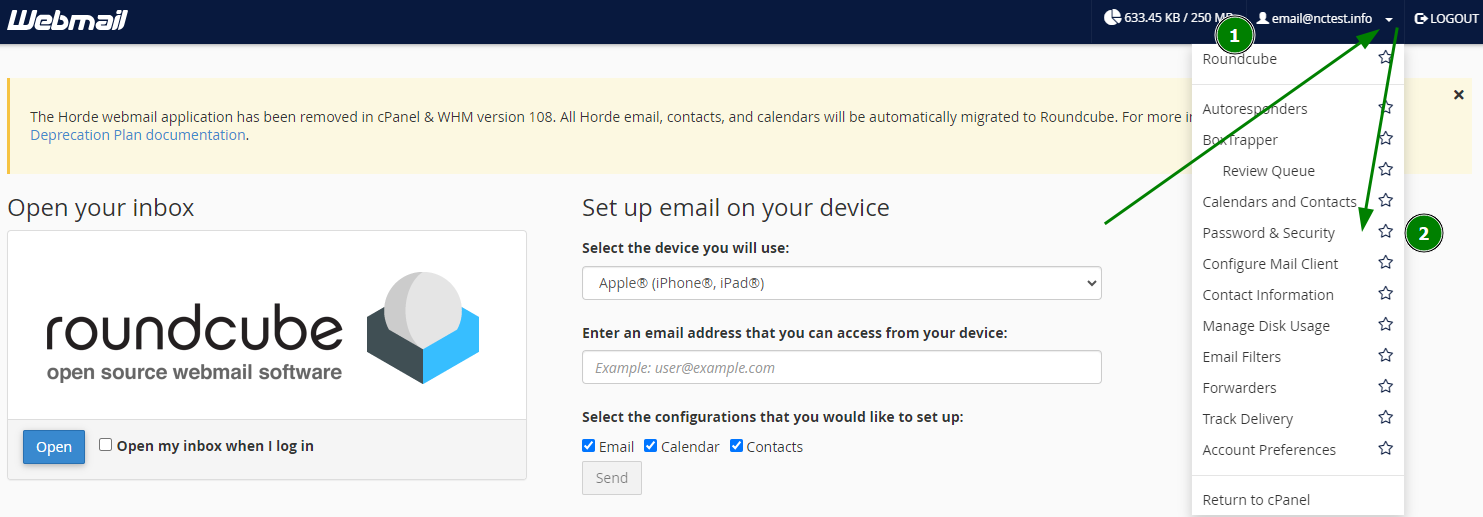
- Click on the email address name displayed on the top-right corner of the webmail and click on the “Password & Security” option from the listed menu.
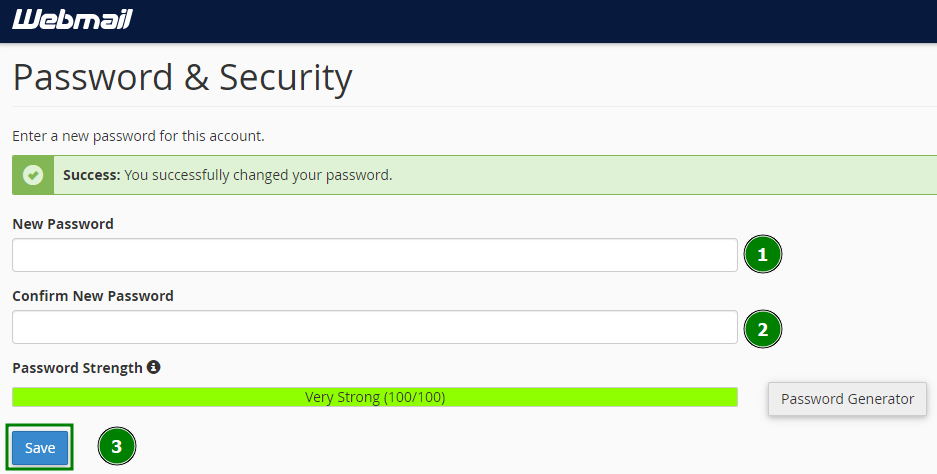
- Type the new password that you want to use for your email account in both boxes “New Password” and “Confirm New Password” and then click the button “Save” to reset your old password with the new password.
Success!
Using cPanel:
- Log in to cPanel
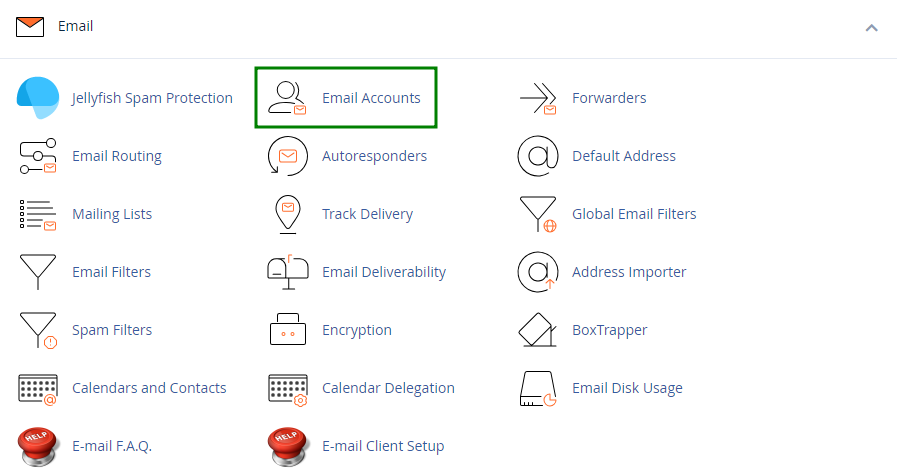
- Navigate to the Email Accounts menu.
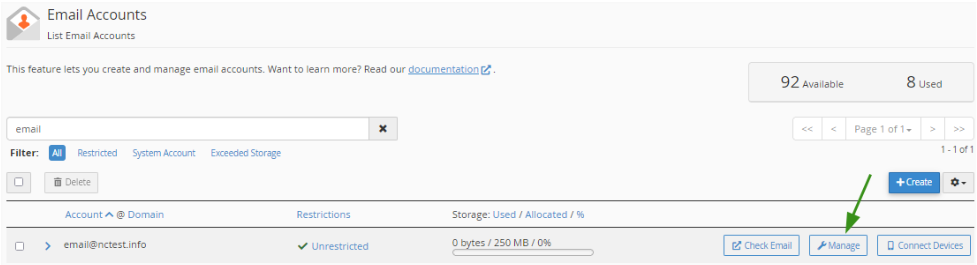
- Find the necessary email address, and click the Manage option.
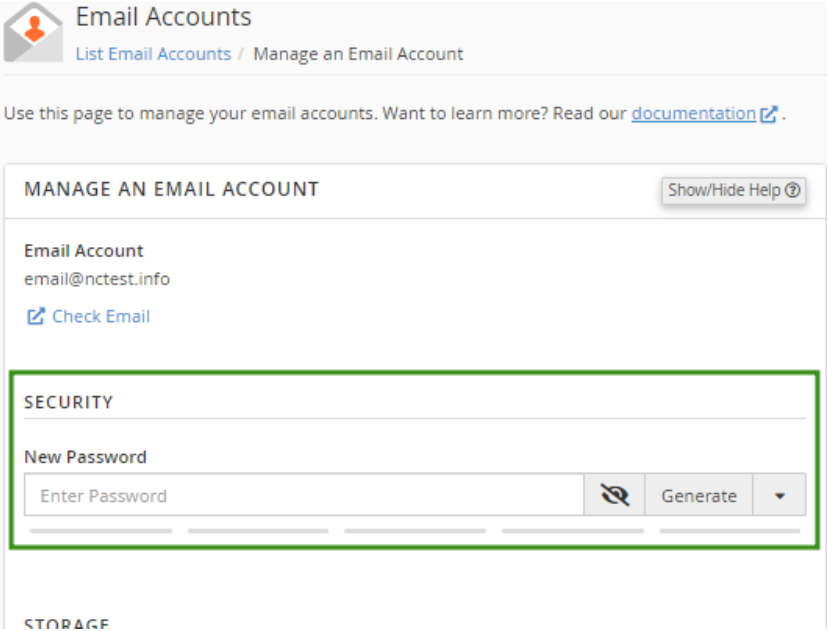
- Navigate to the Security field and enter a new password. Alternatively, you can use the Generate option to create a password.
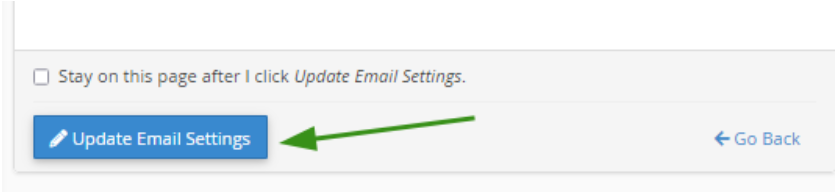
- Click Update Email Settings to save the changes.
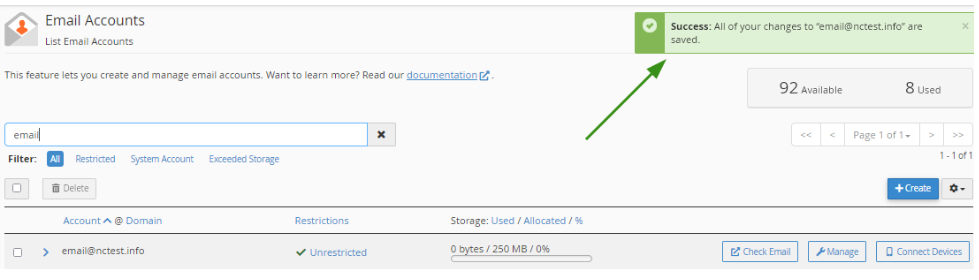
Once the changes are saved, you’ll see a confirmation message at the top of the page.
Success!